Back
Product Design · Mobile · Desktop

Financial App Settings

Client
NestBuddy
Role
UX/UI Designer
Summary
UX/UI design for the settings view of NestBuddy: a financial app that helps households with limited financial knowledge manage expenses and financial goals. The project covered the full UX process from competitor research, user interviews, empathy maps, personas, and journey maps through to low and high-fidelity prototypes, usability testing, and responsive design across desktop, tablet, and mobile.
NestBuddy app introduction: green house icon logo above two tilted mobile phone mockups showing the Settings screen: left phone displays Categories and Budgets with toggle rows for Car and Transport, Education, Entertainment, Fees, and Gifts; right phone displays Notifications with Push Notifications, Family Members list (Chris Stone, Edgar Stone, Lily Stone, Scott Stone), and Income section. Dark gradient background.

Problem

NestBuddy aimed to help households with limited financial knowledge better manage expenses and financial goals. The challenge was to design a clear settings experience where users could manage profiles, notifications, expense categories, and security preferences without friction.

Solution

I conducted competitor analysis, user interviews, empathy maps, personas, and journey maps to understand what users needed. Based on that research, I designed a clear settings architecture and built it through low and high-fidelity prototypes, usability testing, and responsive design across desktop, tablet, and mobile.

The project also included custom icons, animations, style guides, screen flows, and reusable components.

Results

I delivered responsive UX/UI for desktop, tablet, and mobile within 10 weeks, including high-fidelity prototypes, custom icons and animations, style guides, and reusable components.

User interviews and usability testing helped validate and refine the experience, resulting in a clearer settings flow for the intended users.

Design Process

See Full Process Book (PDF)

Research

I started by understanding the product, the market, and the users. This meant researching competitors and talking to people to learn what they needed and where they struggled.

Competitors

I started by analyzing three competing apps, looking at their strengths and weaknesses. I collected customer feedback from app stores and did a hands-on walkthrough of each product to evaluate the experience directly. The analysis helped identify gaps and areas where NestBuddy could do better.
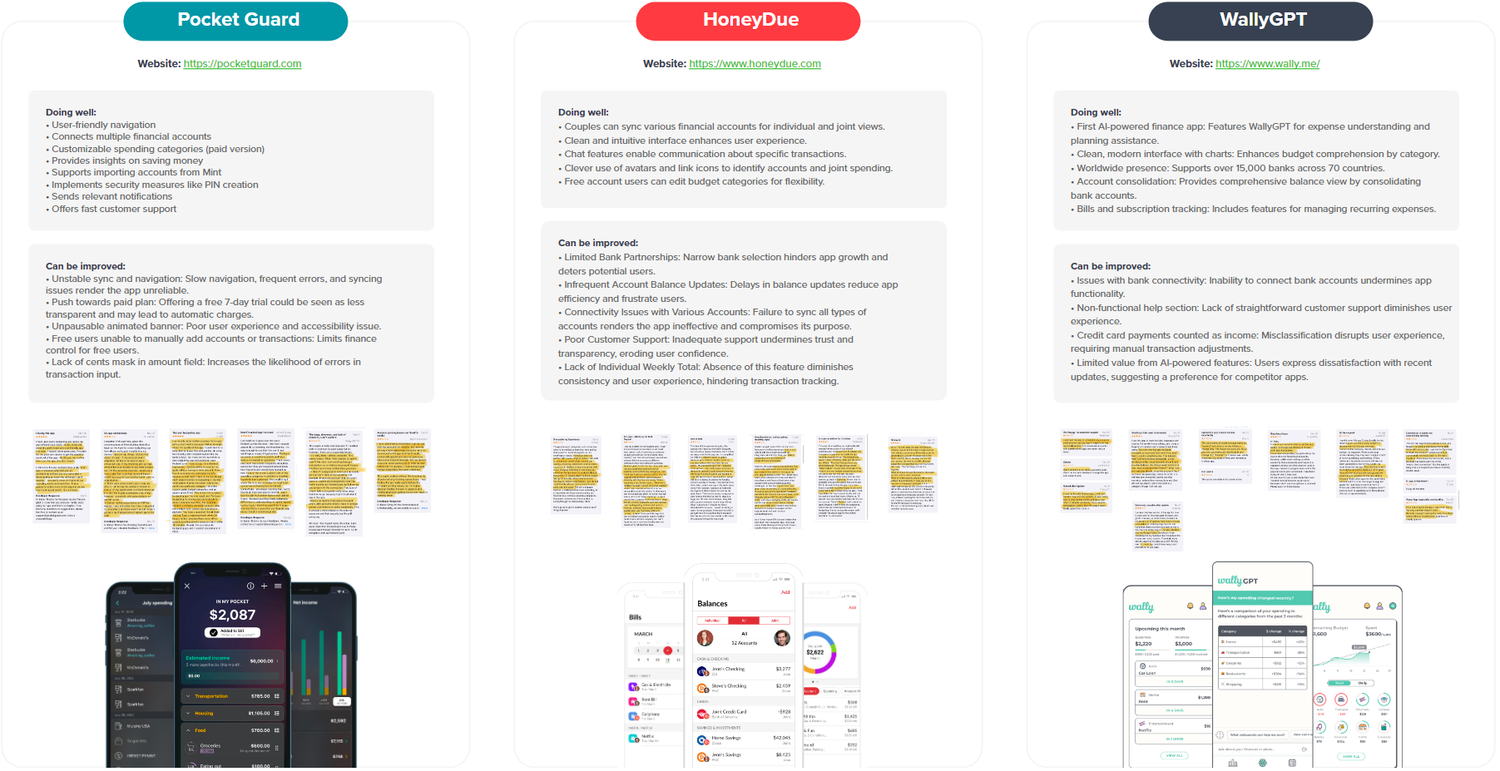
Competitor Analysis: three competitors evaluated side by side: Pocket Guard, HoneyDue, and WallyGPT. Each profile includes an app description, key strengths and weaknesses, and customer feedback observations from app stores, with key insights highlighted in yellow.

Empathy Map

After the competitor analysis, I shifted focus to understanding the users. I conducted interviews with three people from different family situations to learn about their motivations, concerns, and how they managed household finances.

Before each interview, I used screening questions to confirm participants matched the target user profile, covering their family status, how they tracked expenses, and their general approach to budgeting.
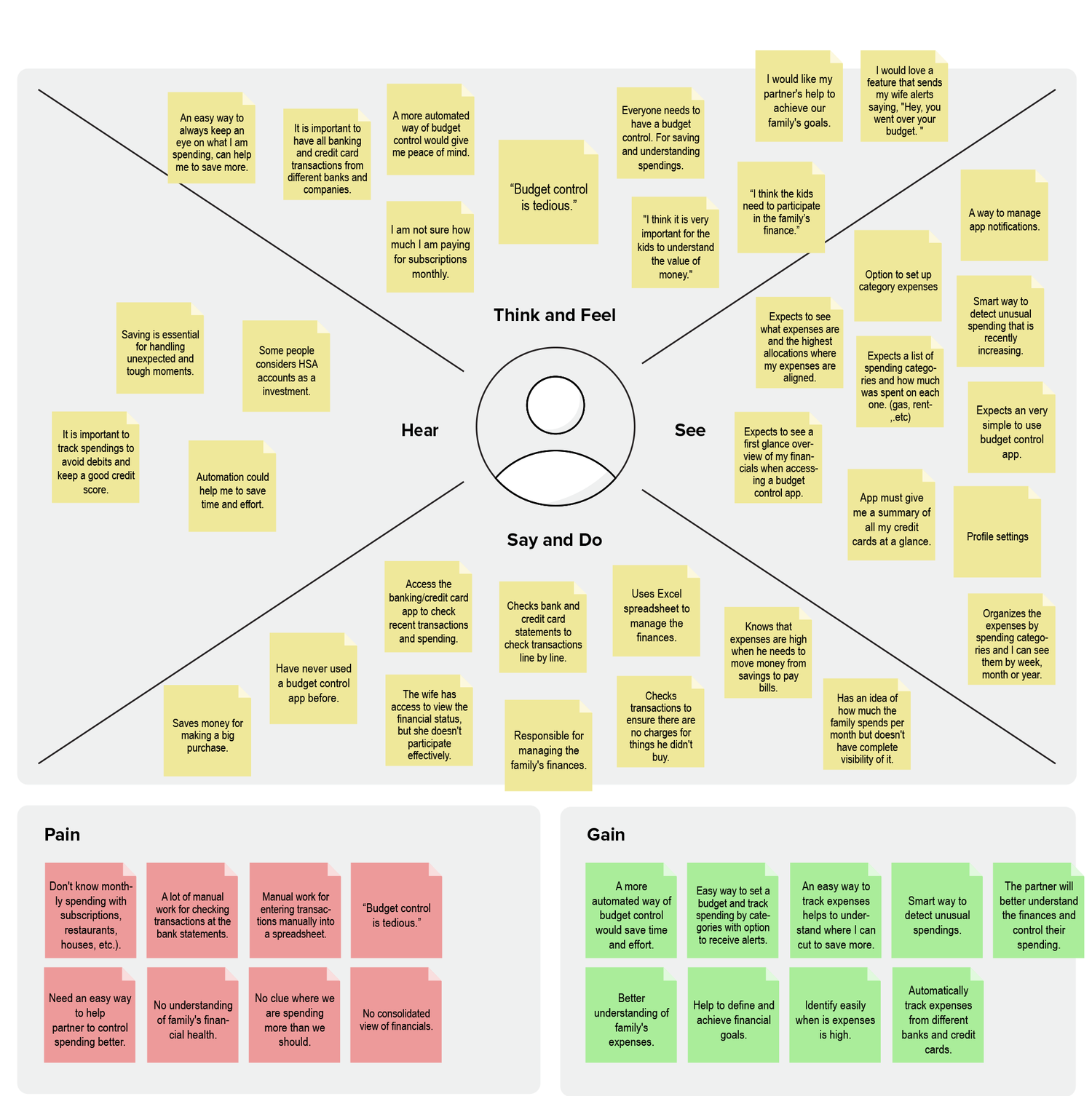
Empathy Map: central user figure surrounded by four quadrants: Think and Feel, Hear, See, and Say and Do, filled with yellow sticky notes capturing user thoughts, observations, and behaviors gathered from interviews. Below: Pain section with pink notes and Gain section with green notes summarizing user pain points and opportunities.

Personas and Journey Maps

Based on the interview findings, I developed three personas representing different types of users. Each persona also had a Journey Map showing the steps they would take to manage their finances and where friction might occur.
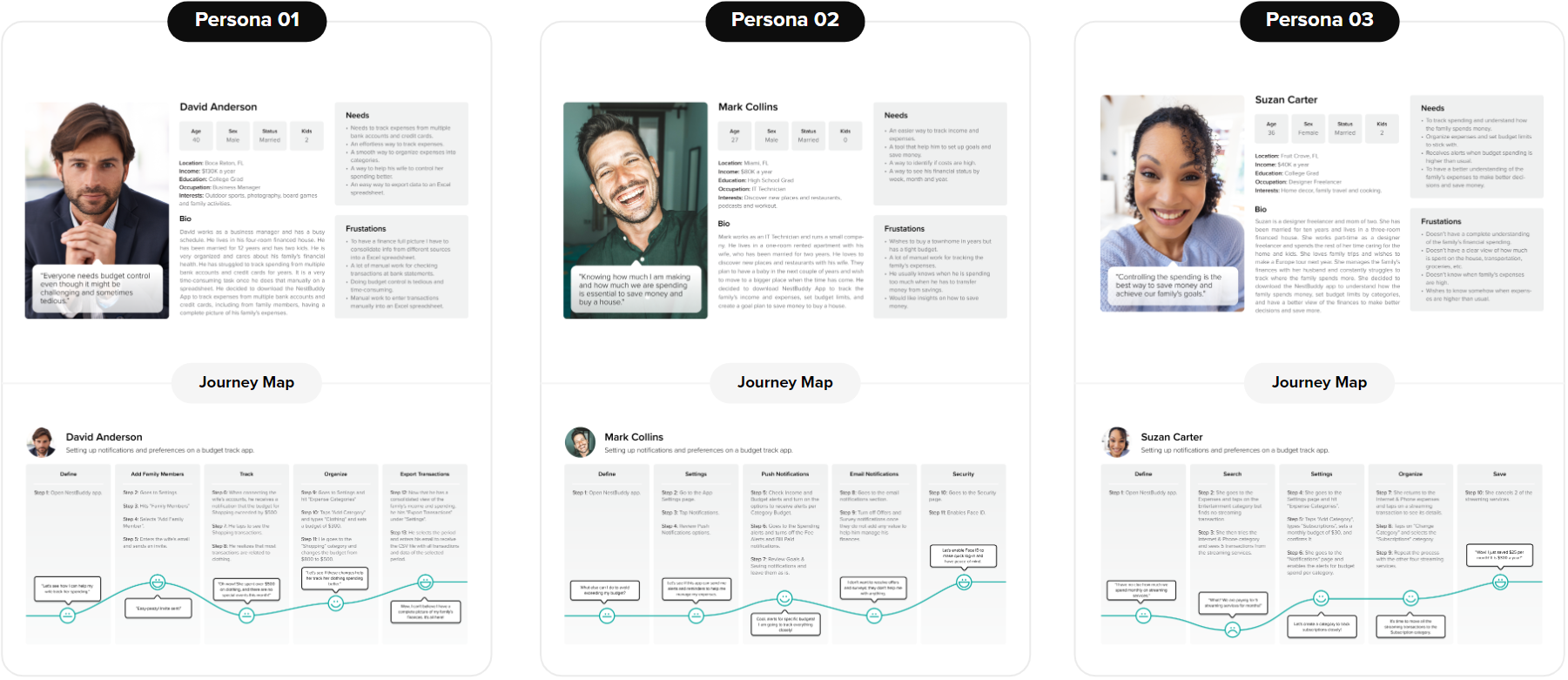
Personas and Journey Maps: three user profiles: Persona 01 David Anderson, Persona 02 Mark Collins, and Persona 03 Susan Carter. Each persona includes a portrait photo, biography, needs, and frustrations. Below each profile is a Journey Map illustrating the steps and emotional states as the user navigates the app to achieve their financial goals.

Sitemap

The research and journey maps helped me identify the key features needed, which I used to draft the settings sitemap.

After identifying the main functionalities, I ran a design exercise to map out the sections needed. I used Post-it notes on paper to quickly test different sitemap configurations, then created the first version in Figma.

Design exercise — Post-it notes on paper showing different sitemap configurations tested for the NestBuddy settings structure.

Site Map Interviews

After mapping out the main sections and subsections, I ran a card sorting exercise with three users. I asked them to prioritize the settings menu by importance and share any suggestions for items they felt were missing.

Sitemap interview exercise — three users' prioritization of the Settings menu items arranged on paper, with annotations for missing menu suggestions.

Main Findings

  • Most users expected to see the Profile option listed first in the Settings menu.
  • Many users placed Family Members near the Profile section.
  • There was no consistent pattern for where users placed Notifications, though most put it toward the upper-middle of the list.
  • Security and Export Transactions were seen as necessary but consistently placed near the bottom.
  • One user suggested adding an option to delete the account.
  • Another user recommended including a help and support section.

Improvements made on the Sitemap

  • Reordered the Settings menu items based on user priorities.
  • Added the Delete Account option to the Profile page.
  • Renamed Expenses Categories to Categories & Budgets to better reflect that budgets can be set in that section.
  • The suggestion for a Help and Support section was noted but not included in the Settings menu at this stage.

Site Map After Interviews
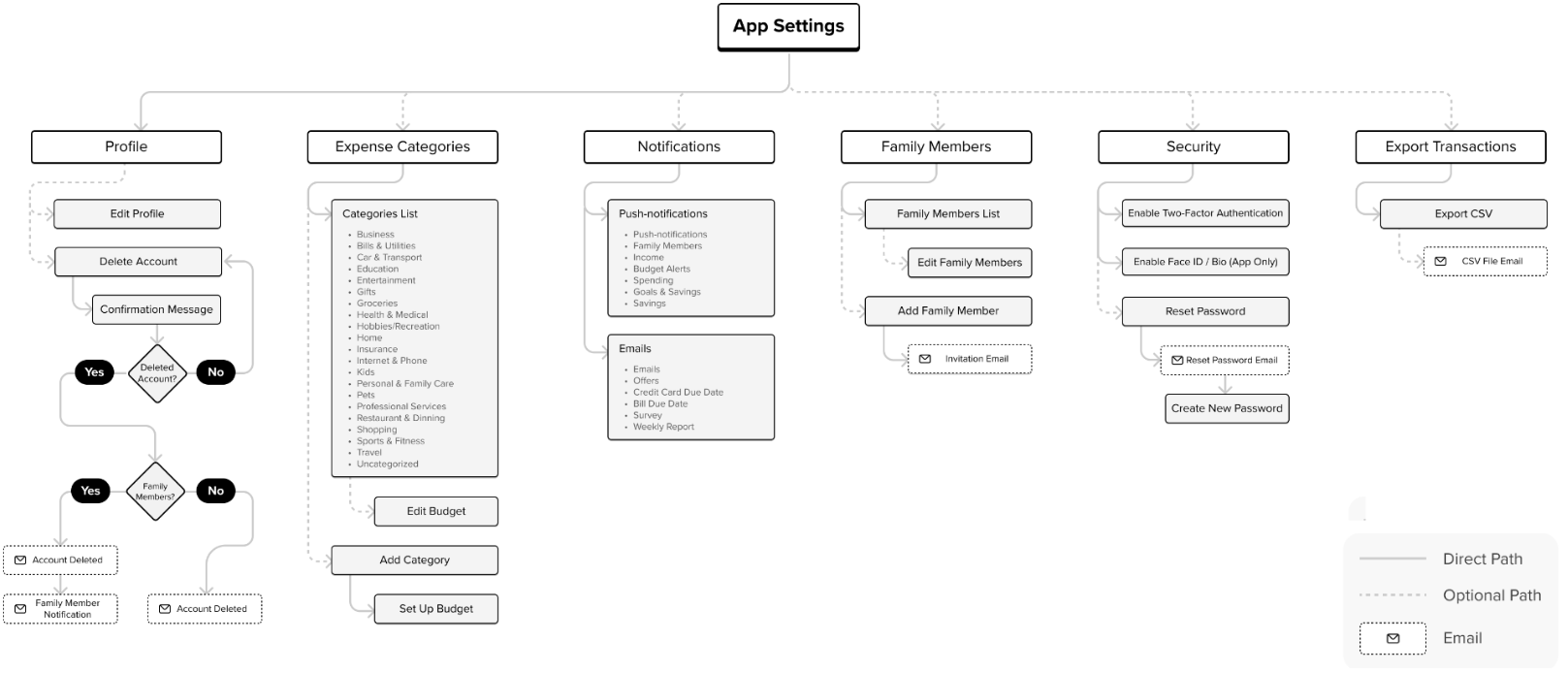
Settings Sitemap: App Settings architecture with six main sections: Profile (Edit Profile, Delete Account with confirmation and notification flow), Expense Categories (categories list including Business, Bills and Utilities, Car and Transport, Education, Entertainment, and more; Edit Budget, Add Category, Set Up Budget), Notifications (Push Notifications and Emails), Family Members (Family Members List, Edit and Add Family Member with Invitation Email), Security (Enable Two-Factor Authentication, Enable Face ID / Bio, Reset Password, Create New Password), and Export Transactions (Export CSV with CSV File Email). Legend shows Direct Path, Optional Path, and Email indicators.

Low Fidelity Wireframes

Once the sitemap was in place, I sketched out ideas for desktop and mobile screens, then turned those sketches into low-fidelity wireframes in Figma.
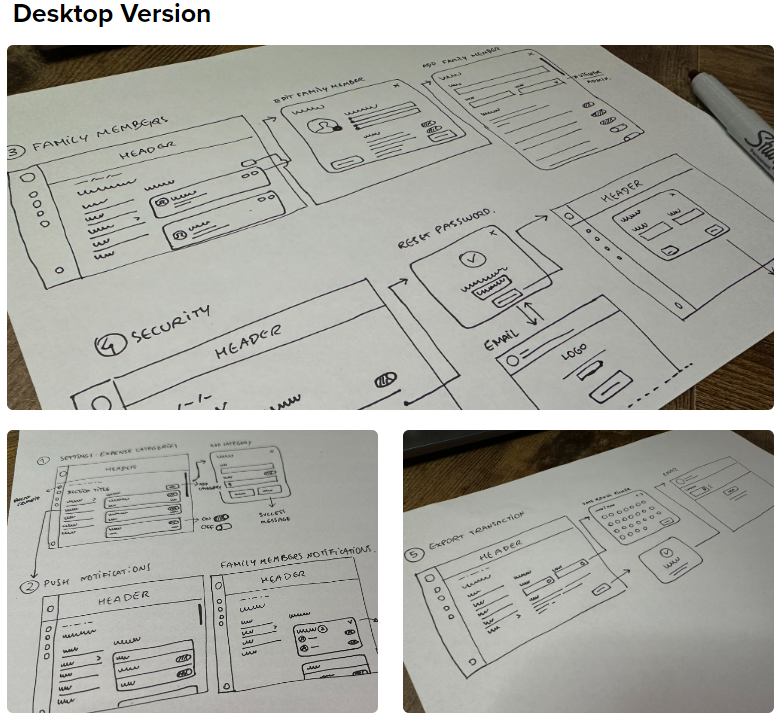
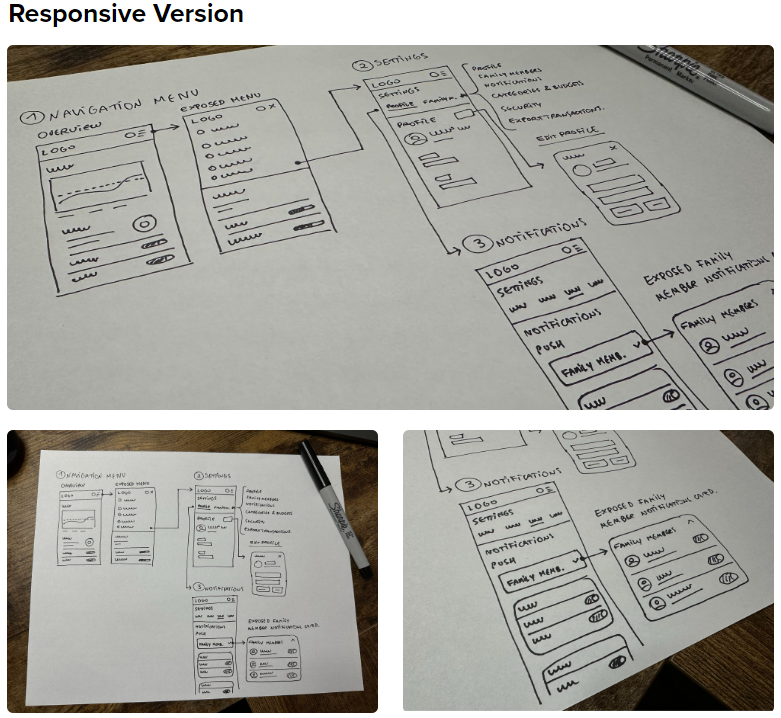
Low-Fidelity Wireframes, Desktop Version: photographs of hand-drawn paper sketches showing early layout concepts for the Settings screens on desktop, including navigation structure and content hierarchy explorations. Low-Fidelity Wireframes, Responsive Version: photographs of hand-drawn paper sketches showing early layout concepts for the Settings screens on mobile and tablet, including responsive navigation and content structure explorations.

Wireframes

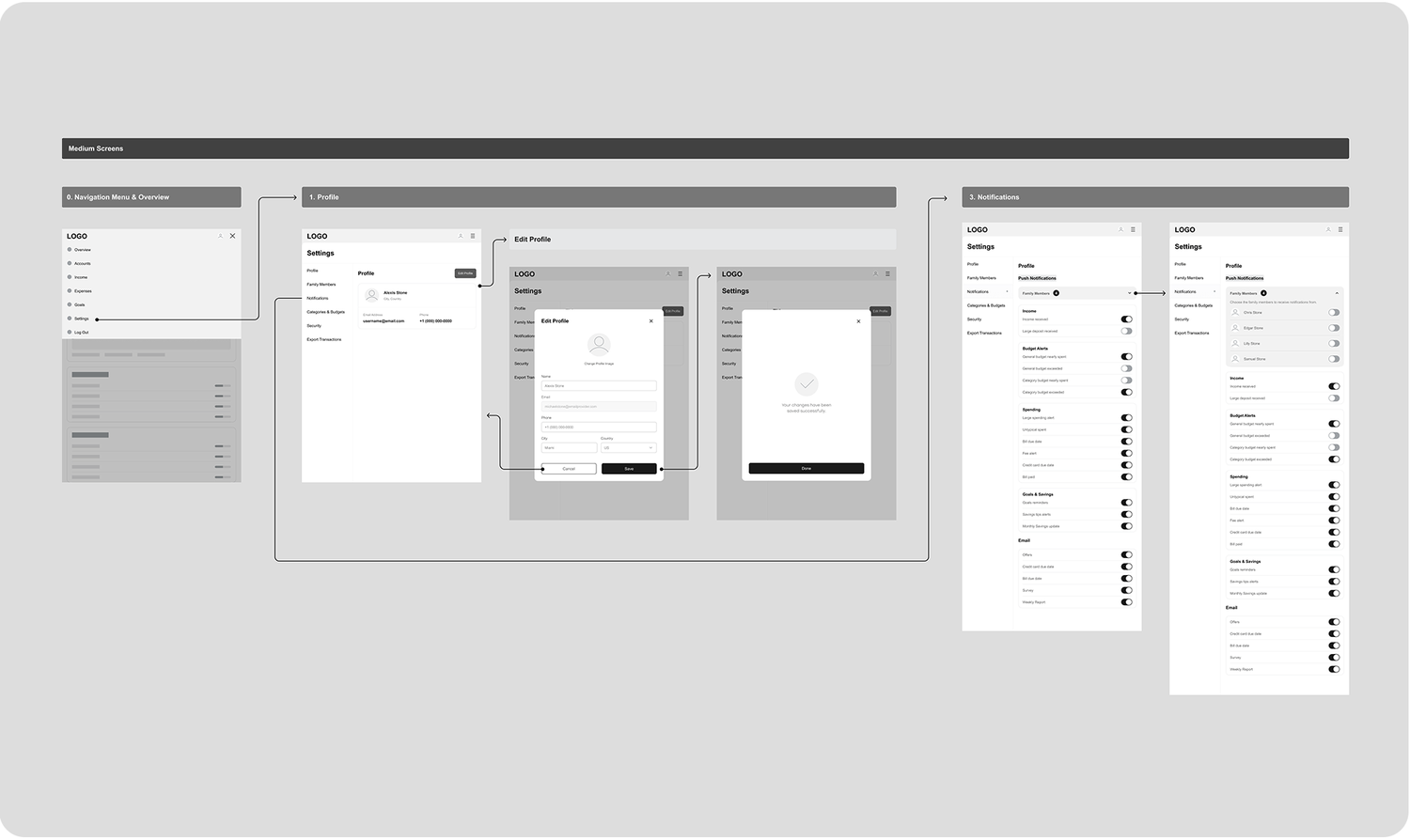
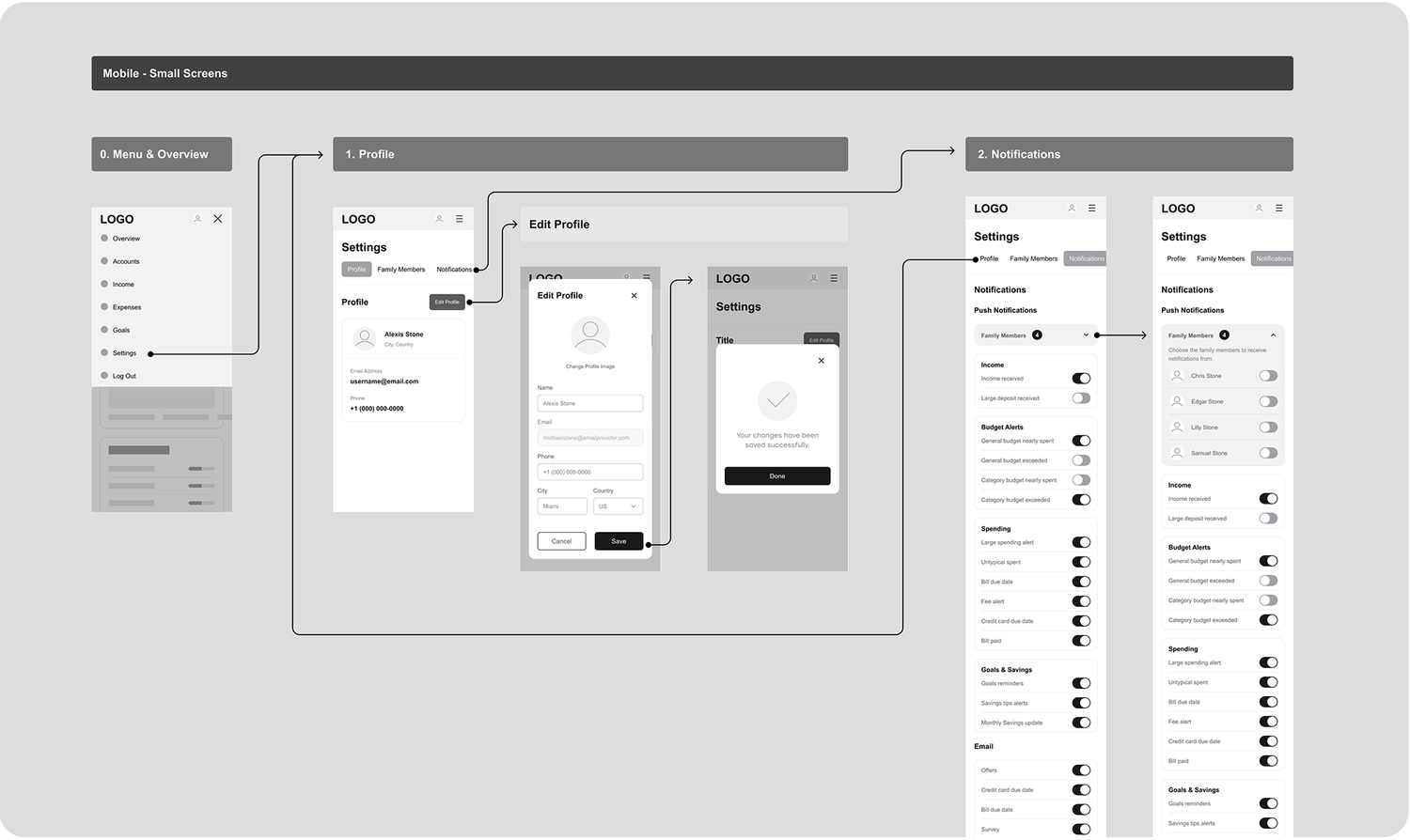
Digital Low-Fidelity Wireframes — Part A: Navigation Menu and Overview with sidebar navigation (Overview, Accounts, Income, Expenses, Goals, Settings, Log Out). Digital Low-Fidelity Wireframes — Part B: Profile settings with Edit Profile modal form (name, email, phone, city, state, country fields), Save and Cancel actions, and a success confirmation state. Digital Low-Fidelity Wireframes — Part C: Notifications screen with Push Notifications, Family Members, Income, Budget Alerts, Spending, Goals and Savings, and Email rows shown in two column width variations.

Usability Testing

After creating the low-fidelity wireframes, I developed an interactive prototype and a usability testing script to observe user interaction and collect feedback.

Changes made based on the users' feedback:

  1. 1.Moved the "Delete Account" option to the Profile page to make it easier to find.
  2. 2.Added a new option to enable Two-Factor Authentication on the Security page.
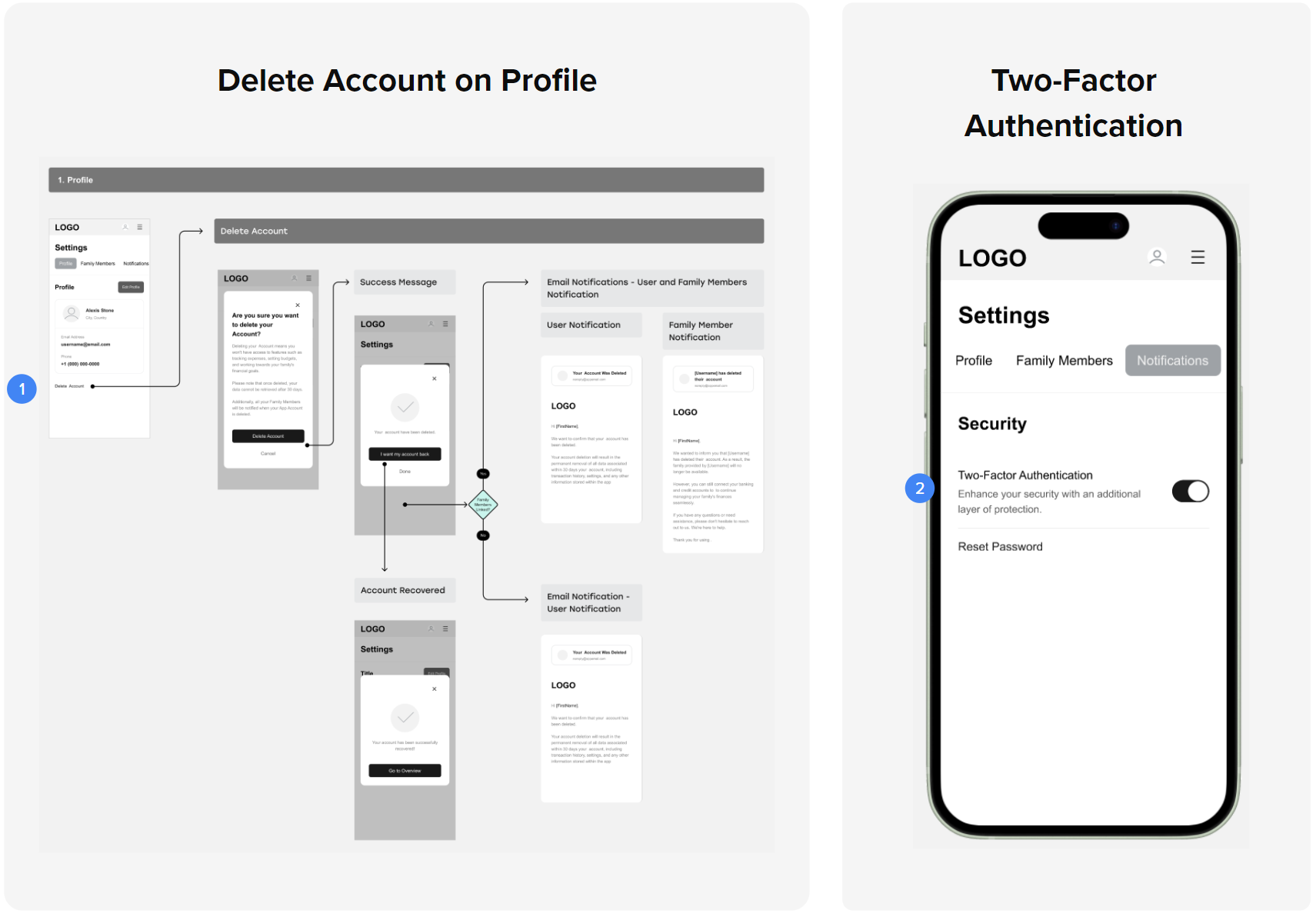
Usability Testing Changes: two updates based on user feedback. Left: Delete Account on Profile: wireframe flow showing the delete account confirmation dialog, success message with account recovery option, and email notification templates for the user and family members, with a 30-day recovery window. Right: Two-Factor Authentication added to the Security settings page on mobile, with the option description 'Enhance your security with an additional layer of protection' and Reset Password below it.

Mid Fidelity Prototypes

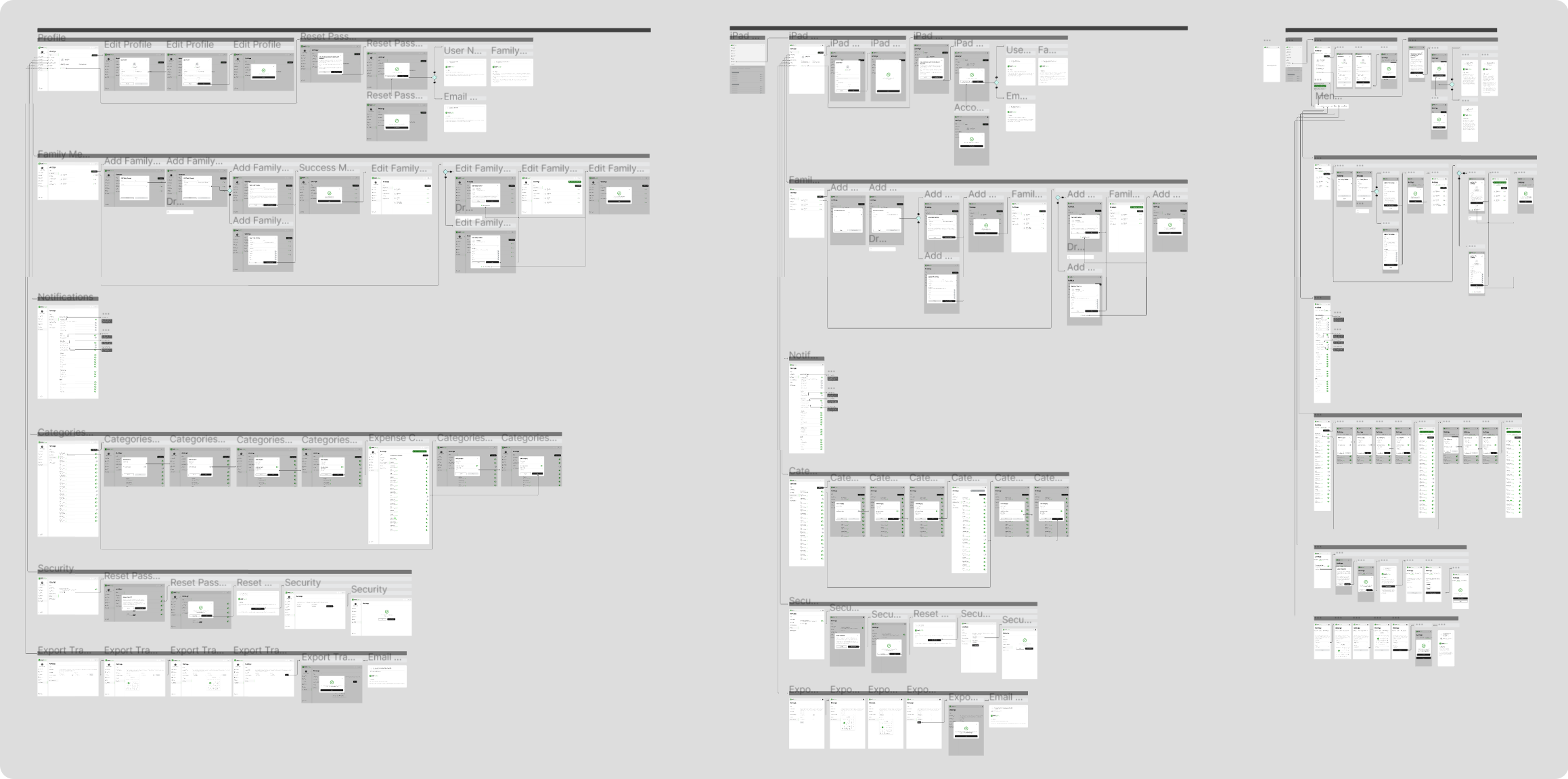
Once the branding was in place, I updated the prototype to reflect the visual direction. This included creating style guides, color palettes, icons, and typography. I also mapped out screen flows, adding decision points and the screens that follow each one.
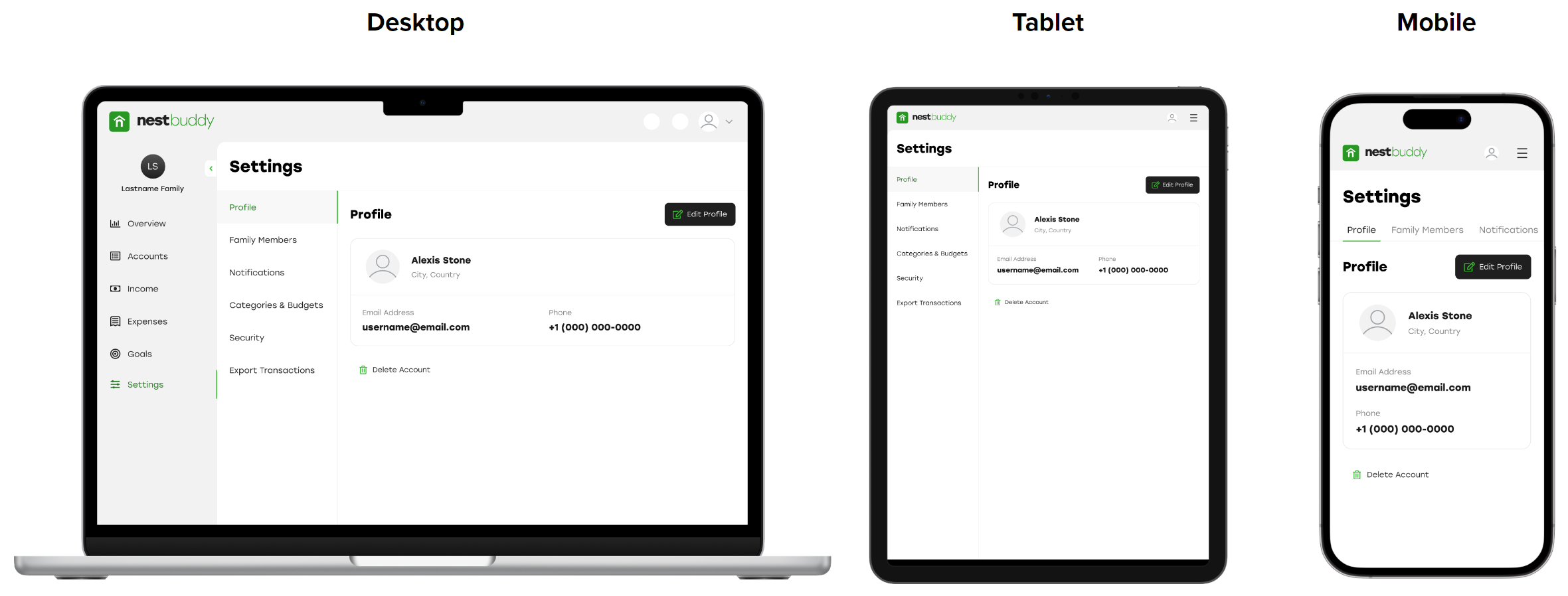
High-Fidelity Responsive UI: Profile settings page for user Alexis Stone shown across three device sizes. Desktop (MacBook): full sidebar navigation with Overview, Accounts, Income, Expenses, Goals, and Settings; settings sub-navigation with Profile, Family Members, Notifications, Categories and Budgets, Security, and Export Transactions; Profile panel showing avatar, name, city, email address (username@email.com), phone (+1 000 000-0000), and Delete Account link. Tablet: same layout adapted to a two-column structure. Mobile: tab navigation (Profile, Family Members, Notifications) with Profile content below. NestBuddy green accent color throughout.

Usability Testing

With the mid-fidelity prototype updated, I ran a second round of testing focused on the responsive version. The goal was to check how well navigation worked on mobile and catch any remaining issues.

Changes made based on the users' feedback:

  1. 1.Aligned 'Family Member' card design with other notifications. Added tooltips for 'Family Members'.
  2. 2.Implemented tooltips for 'Large deposit received'.
  3. 3.Introduced tooltips for 'General budget nearly spent'.
  4. 4.Included a tooltip guiding first-time users to swipe for settings navigation on mobile.
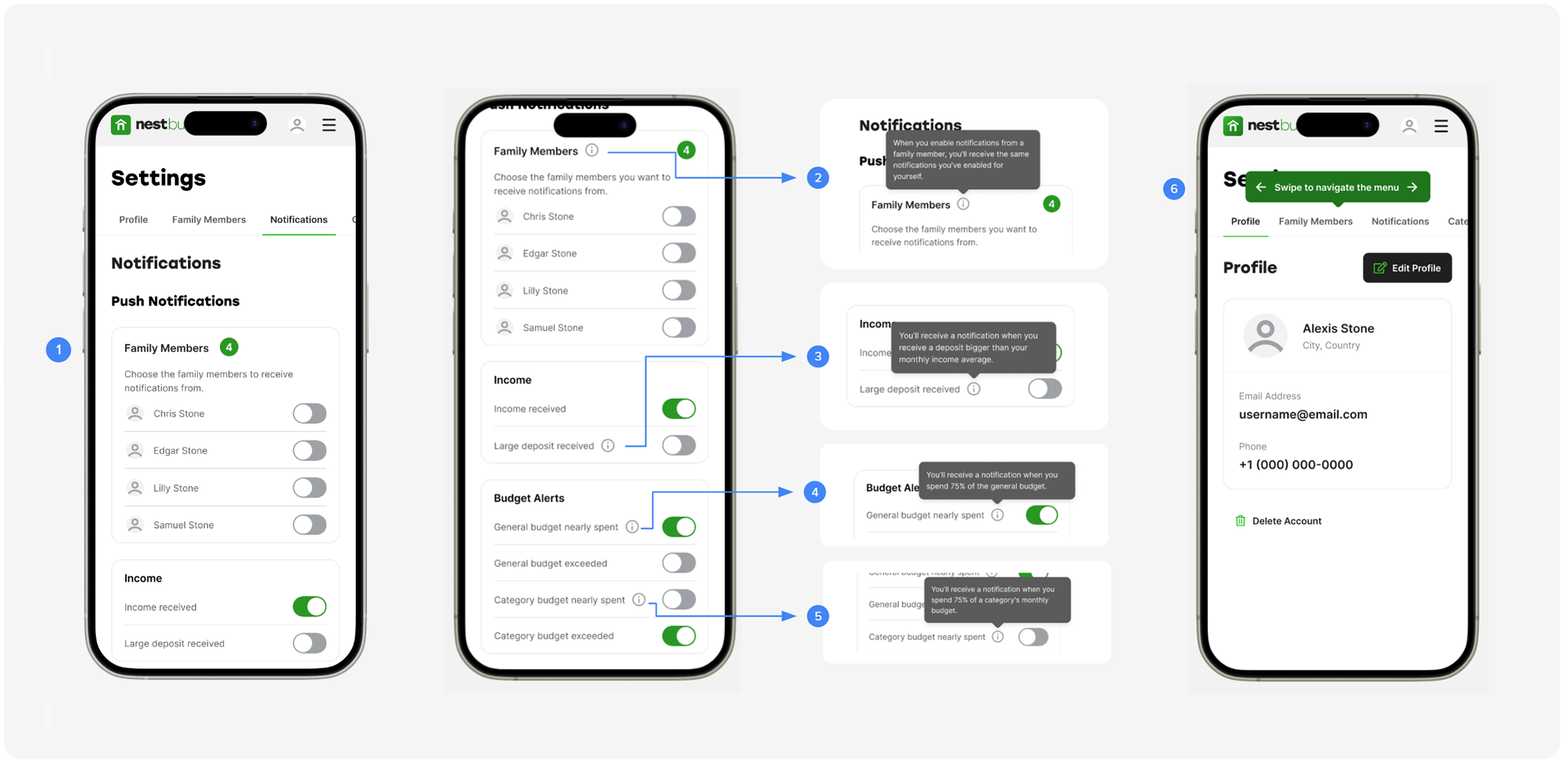
Mobile High-Fidelity Detail: three annotated mobile screens showing the Notifications settings flow. Left screen: Push Notifications with Family Members section listing Chris Stone, Edgar Stone, Lily Stone, and Samuel Stone with toggle controls, followed by Income and Budget Alerts rows (annotation 1). Center screen: same layout with tooltip annotations explaining Family Members notification behavior (2), Income large deposit notification (3), General budget nearly spent (4), and Category budget nearly spent (5). Right screen: Profile page with a swipe-to-navigate menu hint and profile details for Alexis Stone (annotation 6).

High Fidelity Prototypes

After multiple iterations and two rounds of usability testing, I finalized the high-fidelity prototype for the NestBuddy Settings. The result was a consistent experience across desktop, tablet, and mobile.
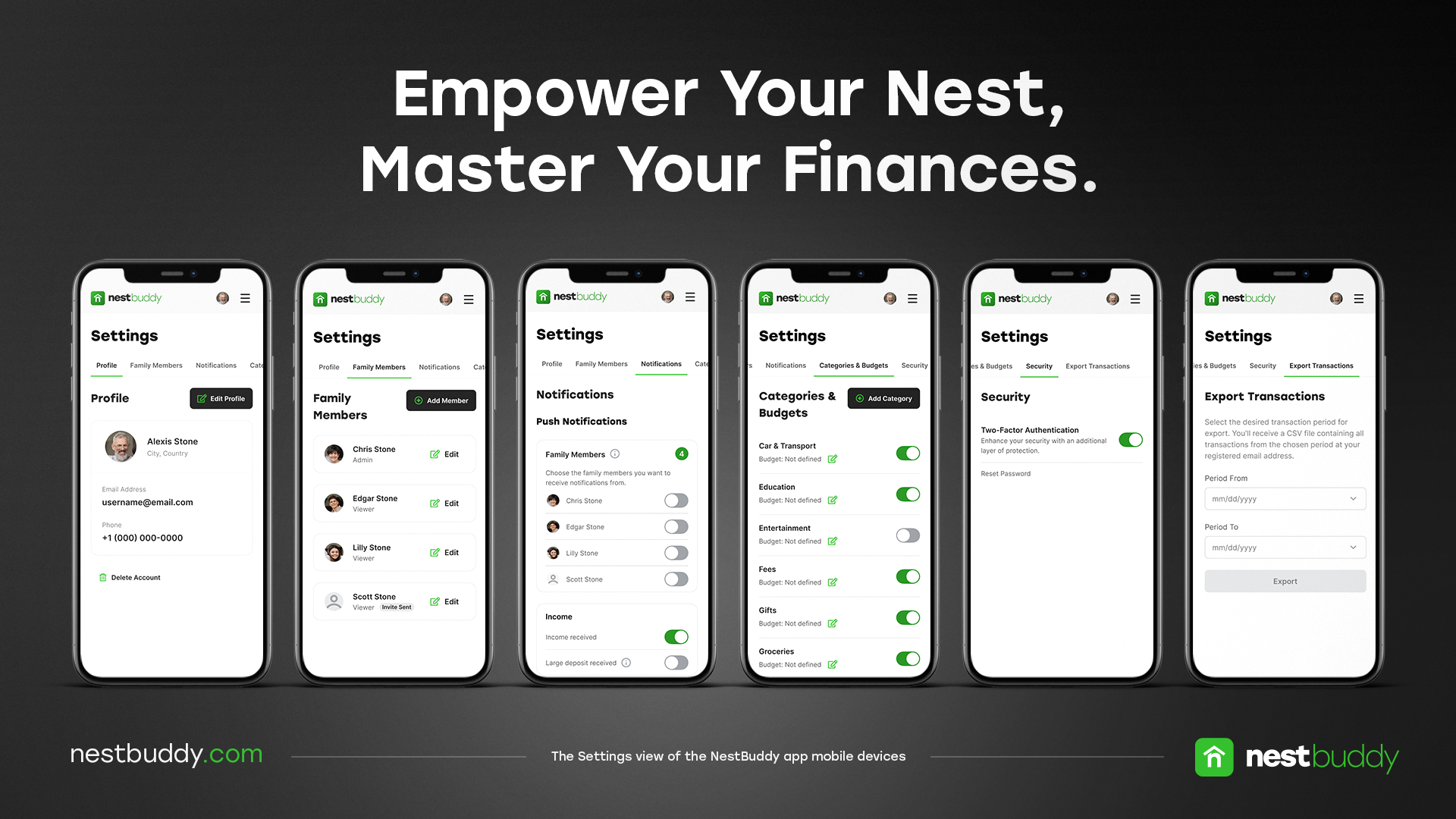
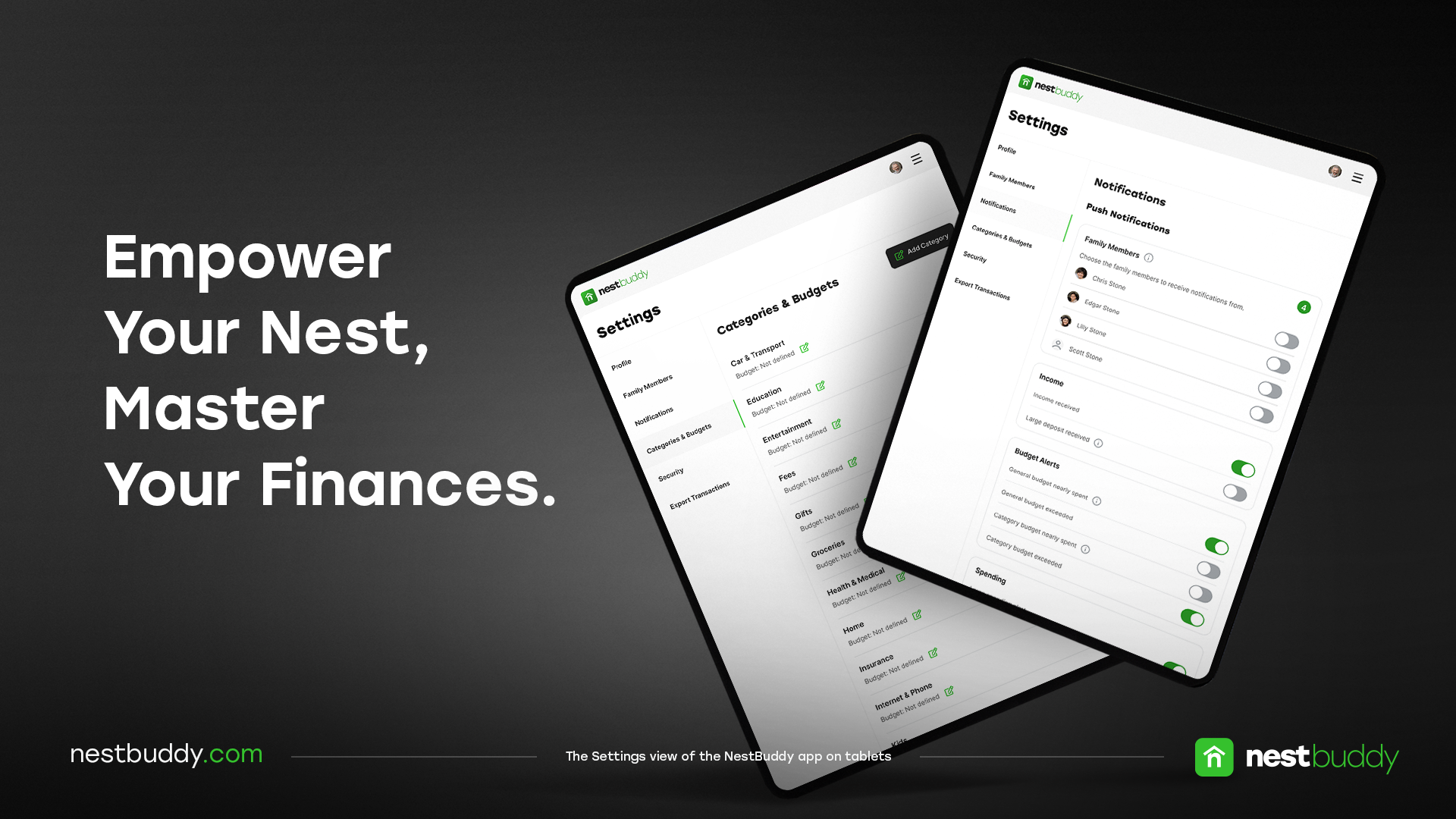
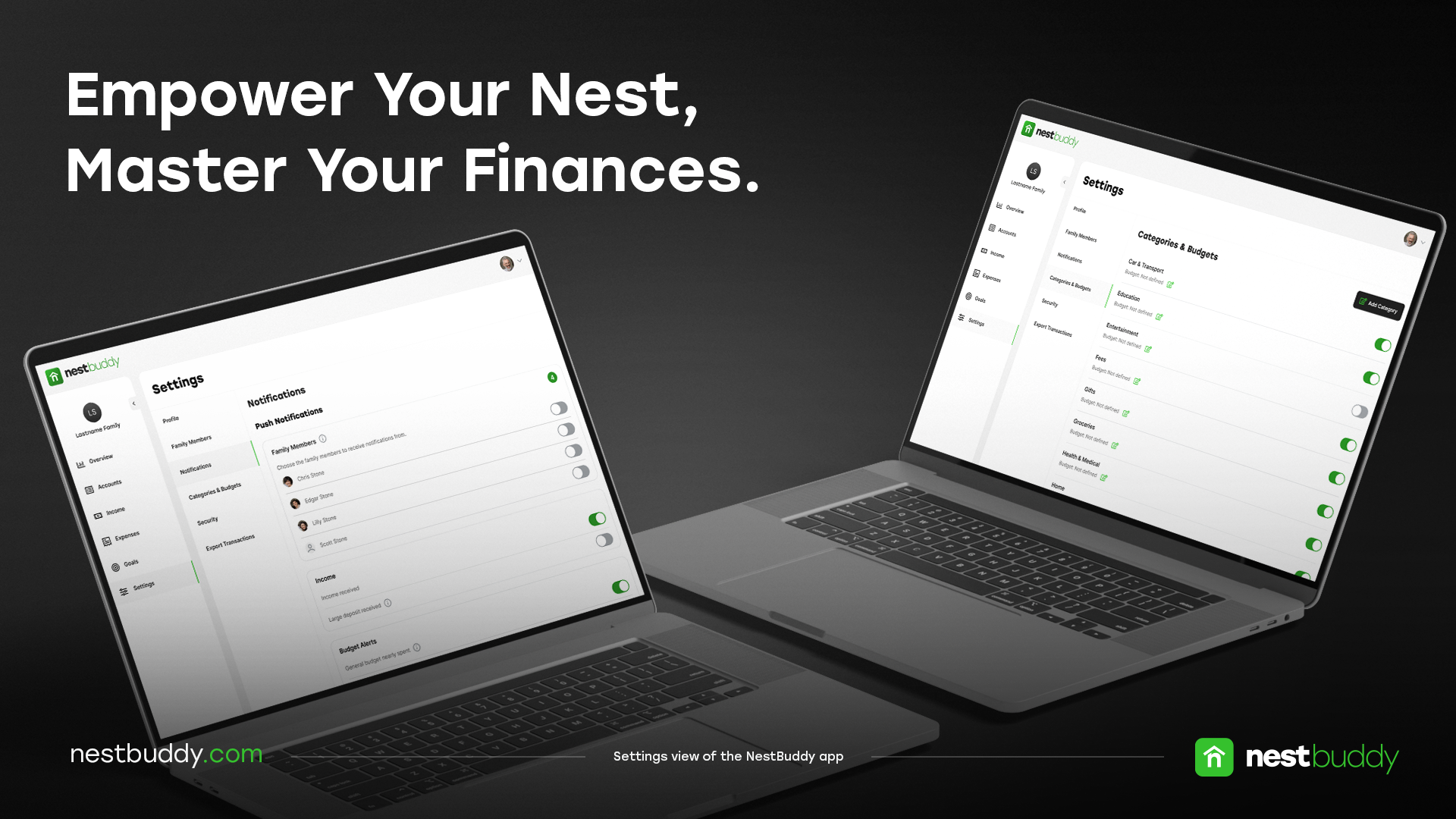
NestBuddy Mobile Showcase: 'Empower Your Nest, Master Your Finances.' headline on a dark background. Six mobile phone screens displayed side by side showing all settings sections: Profile (Alexis Stone with email and phone), Family Members (Chris Stone, Edgar Stone, Lily Stone), Notifications (Push Notifications with family member toggles), Categories and Budgets (Car and Transport, Education, Entertainment, Fees, Gifts, Groceries with Add Category button), Security (Two-Factor Authentication, Face ID, Reset Password), and Export Transactions. nestbuddy.com: The Settings view of the NestBuddy app on mobile devices. NestBuddy Tablet Showcase: 'Empower Your Nest, Master Your Finances.' headline on a dark background with two tablet mockups showing the Settings screen: Categories and Budgets with category list and toggle controls, and Notifications with Push Notifications and family member options. nestbuddy.com: The Settings view of the NestBuddy app on tablets. NestBuddy Desktop Showcase: 'Empower Your Nest, Master Your Finances.' headline on a dark background with two laptop mockups showing the Notifications settings and the Categories and Budgets settings with the full expense category list and toggle controls. nestbuddy.com: Settings view of the NestBuddy app on desktop.

Want to learn more about this project?
hello@irvingsuna.com